
The Amazon Fire TV Stick—especially the Fire TV Stick 4K Max and the Fire TV Cube—is widely considered the best dedicated streaming hardware for IPTV. Its quad-core processor, dedicated hardware video decoders, and Wi-Fi 6E capability provide the ideal foundation for smooth 4K viewing. In this complete 2026 guide, we walk you step by step through installing and optimizing Iptvon on your Firestick.
Prerequisites Before You Begin
- An Amazon Firestick or Fire TV device connected to your television and home Wi-Fi/Ethernet.
- An active Iptvon subscription (credentials are delivered via WhatsApp/email).
- Approximately 5 minutes of setup time.
Step 1: Install the "Downloader" Application
- From the Fire TV home screen, navigate to the Find menu and select Search.
- Type
Downloaderin the search bar. - Select the orange Downloader icon from the search results, click Download or Get, and wait for the installation to finish.
Step 2: Enable Developer Options & Unknown Apps
To allow Downloader to install premium IPTV players like IPTV Smarters Pro or TiviMate, follow these short steps:
- Go to Settings (the gear icon on the Firestick home screen).
- Select My Fire TV > About.
- Important note for Fire OS 2026: Quickly click 7 times on the name of your Fire TV Stick until a notification appears: "No need, you are already a developer."
- Press the Back button to return to My Fire TV. You will now see Developer Options.
- Select Developer Options > Install Unknown Apps.
- Find Downloader in the list and switch it ON.
Step 3: Download & Sideload Your IPTV Player
- Launch the Downloader app from your app library and grant storage permissions when prompted.
- Click into the URL input box and enter one of the following shortcodes:
- IPTV Smarters Pro: Enter code
78522and click Go. - TiviMate IPTV Player: Enter code
278077and click Go.
- IPTV Smarters Pro: Enter code
- The APK installation package will download automatically. When it finishes, click Install.
- After installation, click Open to launch your new IPTV player.
Step 4: Login with Your Iptvon Credentials
- On the home screen of IPTV Smarters or TiviMate, select Login with Xtream Codes API (or Add Playlist).
- Enter the following details provided in your order confirmation:
- Any Name:
Iptvon 4K - Username: [Your custom username from WhatsApp]
- Password: [Your custom password from WhatsApp]
- Server URL: [Your dedicated cluster URL from WhatsApp]
- Any Name:
- Click Add User or Login. The player will download channel categories, live sports schedules, and the VOD catalog of over 142,000 titles in under 60 seconds.
Pro Tips for Buffer-Free Playback on Firestick
- Enable hardware decoding: In your IPTV player's settings, switch the video decoder to Hardware (HW+) to use the Firestick's GPU.
- Adjust the buffer size: Set the buffer cache to Medium or Large (3-5s) to protect against Wi-Fi packet loss.
- Clear the cache weekly: Go to Settings > Applications > Manage Installed Applications > Clear Cache to maintain maximum Firestick storage performance.
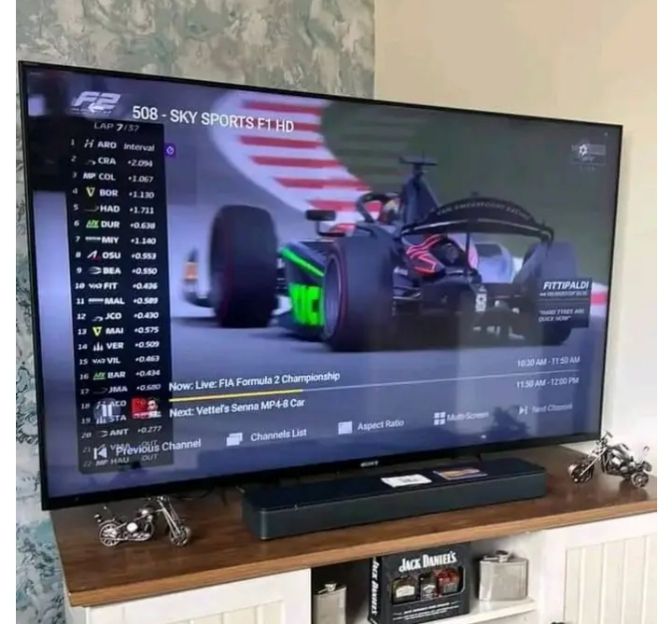
Elevate Your 4K Streaming Experience Today
Join over 15,000 satisfied streamers across Germany with Iptvon.
Get Instant Access Now →